TMTACTICAL METRIC STUDIO

Tactical MetricData Monitor

Quick themes

Customize colors
Time text

Color designer

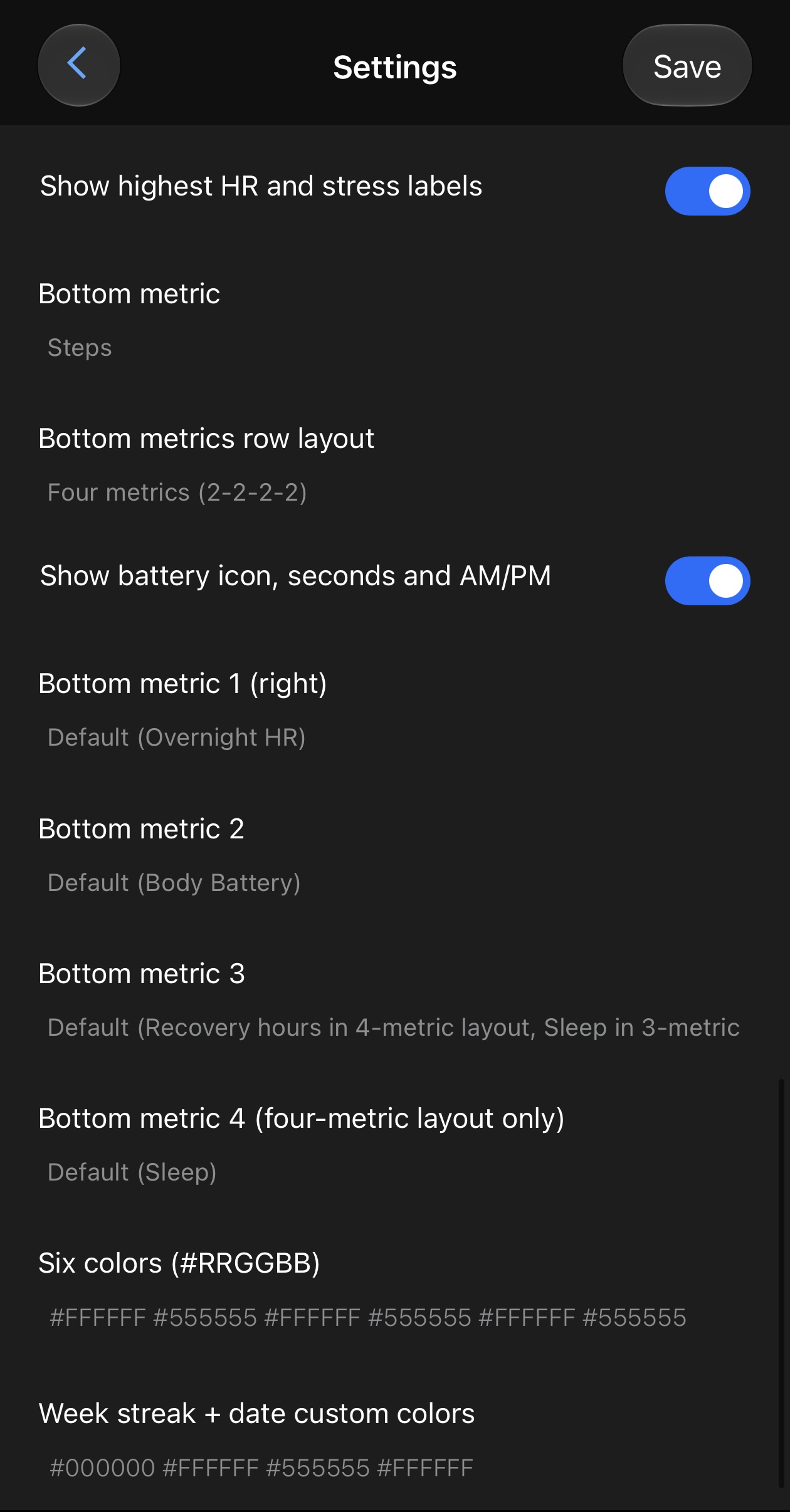
In Garmin Connect IQ, open your watch face settings and paste each color line into its matching field.

Six colors · time and metric fields

Controls the digits and background patterns for the time and metrics.

Six colors setting

Week streak + date custom colors

Controls the circle fill, activity icon or weekday letter, outline, and date.

Week streak + date setting
02 / Visual field guide

Watch face guide

Follow the face from the weather forecast at the top to your step count at the bottom.

Weather icons

The forecast icons show morning, noon and night. Weather requires a location and Bluetooth syncing with Garmin Connect. An unavailable or unsupported reading appears as --.

Clear dayClear day
Clear nightClear night
Partly cloudy dayPartly day
Partly cloudy nightPartly night
CloudyCloudy
RainRain
StormStorm
SnowSnow

Weather row settings

Weather layouts are Three forecast icons, Wind direction / wind speed, Wind direction / UV index and Wind speed / UV index. Wind speed follows your distance units.

Moon phases

The ten original moon images, shown in order from the dark moon through the illuminated phases and back.

  1. Moon phase 01Phase 01
  2. Moon phase 02Phase 02
  3. Moon phase 03Phase 03
  4. Moon phase 04Phase 04
  5. Moon phase 05Phase 05
  6. Moon phase 06Phase 06
  7. Moon phase 07Phase 07
  8. Moon phase 08Phase 08
  9. Moon phase 09Phase 09
  10. Moon phase 10Phase 10

Training status

Training status appears only in the Original and Next sunrise/sunset + moonrise/moonset Sun/Moon layouts.

StrainedStrained
UnproductiveUnproductive
OverreachingOverreaching
MaintainingMaintaining
DetrainingDetraining
ProductiveProductive
PeakingPeaking
RecoveryRecovery
Sun

Sun and moon row settings

Sun/Moon layouts are Original, Next sunrise/sunset + moonrise/moonset, Centered moon + sunrise/sunset / no training and Next moon + sun events / no training. Moon events require a weather location.

Weekly streak icons

Each circle starts with a weekday letter. Once you log an activity, the longest activity for that day determines the icon.

For example, a 45-minute ride and a 20-minute run show the cycling icon.

Cycling

Cycling

Other / unknown activity

Other / unknown activity

Shown when the activity type is unrecognized.

Swimming

Swimming

Training

Training

Running

Running

When no activity is logged

Today or a past day · no activity

Today or a past day · no activity

A filled white background with the weekday letter means the day is today or has passed, with no activity logged yet. T means Tuesday in this example.

Future day

Future day

The patterned letter marks an upcoming day.

Alarm2

Alarm count

The number beside the clock shows how many alarms are set.

Notification3

Notification count

The number beside the bell shows your notification count.

Small metrics

Five small metric fields with their icons

Choose running or cycling distance, weather or watch temperature, and running or cycling VO₂ max. Available readings depend on the watch and its recorded data.

Date

Example date in dotted lettering

The date sits above the time digits. Set its color in the week streak and date controls.

Time fonts

Choose a time font to change the hour and minute digits. Larger fonts may leave less room for side controls.

Original segmented time fontOriginal segmented
Alternate bitmap time fontAlternate
Angular time fontAngular 29 x 49 and native Angular
Grid pixel time fontGrid pixel centered and native side panel

Time controls

On supported layouts, Show time controls toggles the AM/PM indicator and battery display. Seconds and the heartbeat animation are limited when the display is inactive.

Face layouts

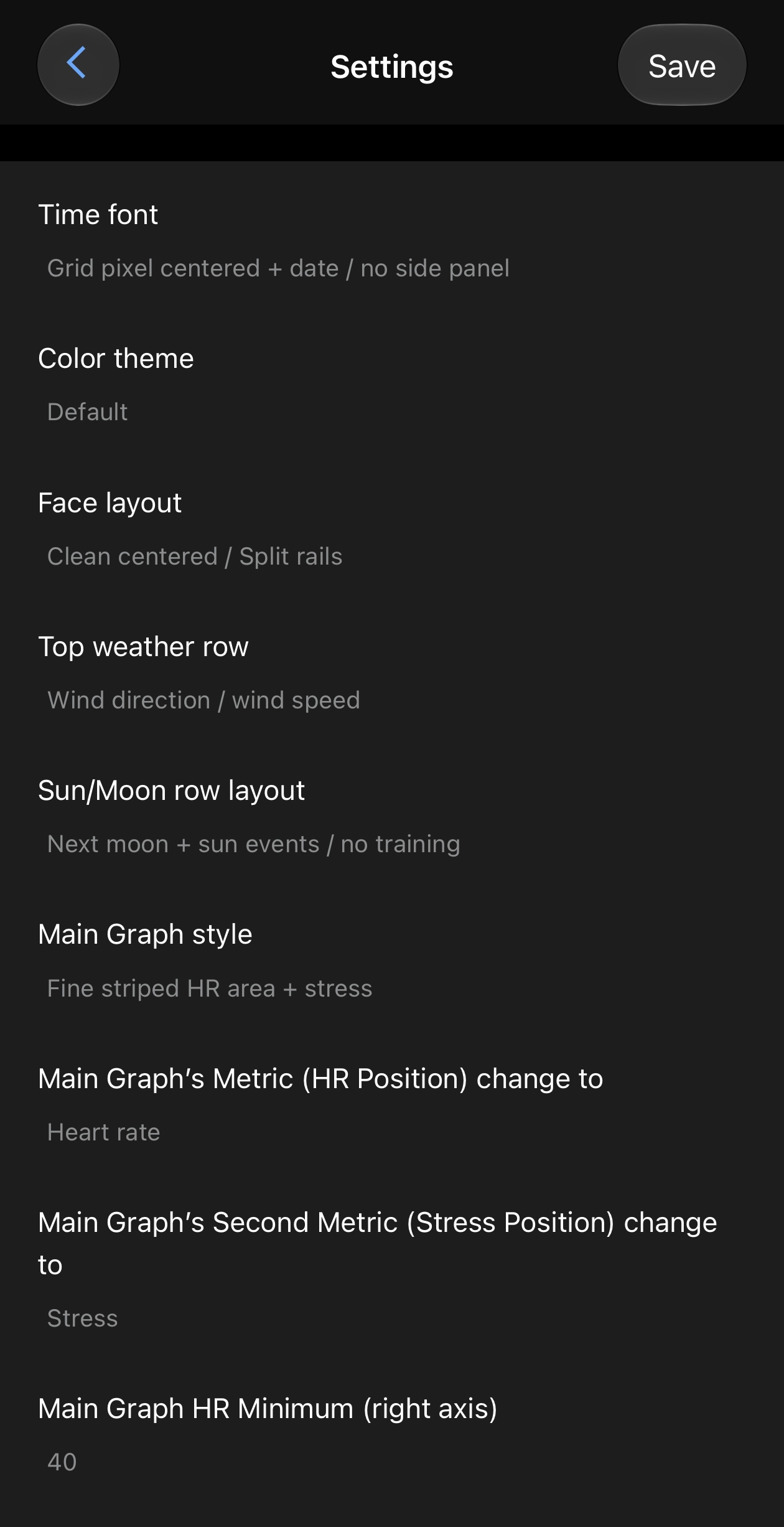
Face layouts are Original layout, Corner brackets, Clean centered / no week streak, Clean centered / Crosshair ruler and Clean centered / Split rails.

Side Heart panel designs

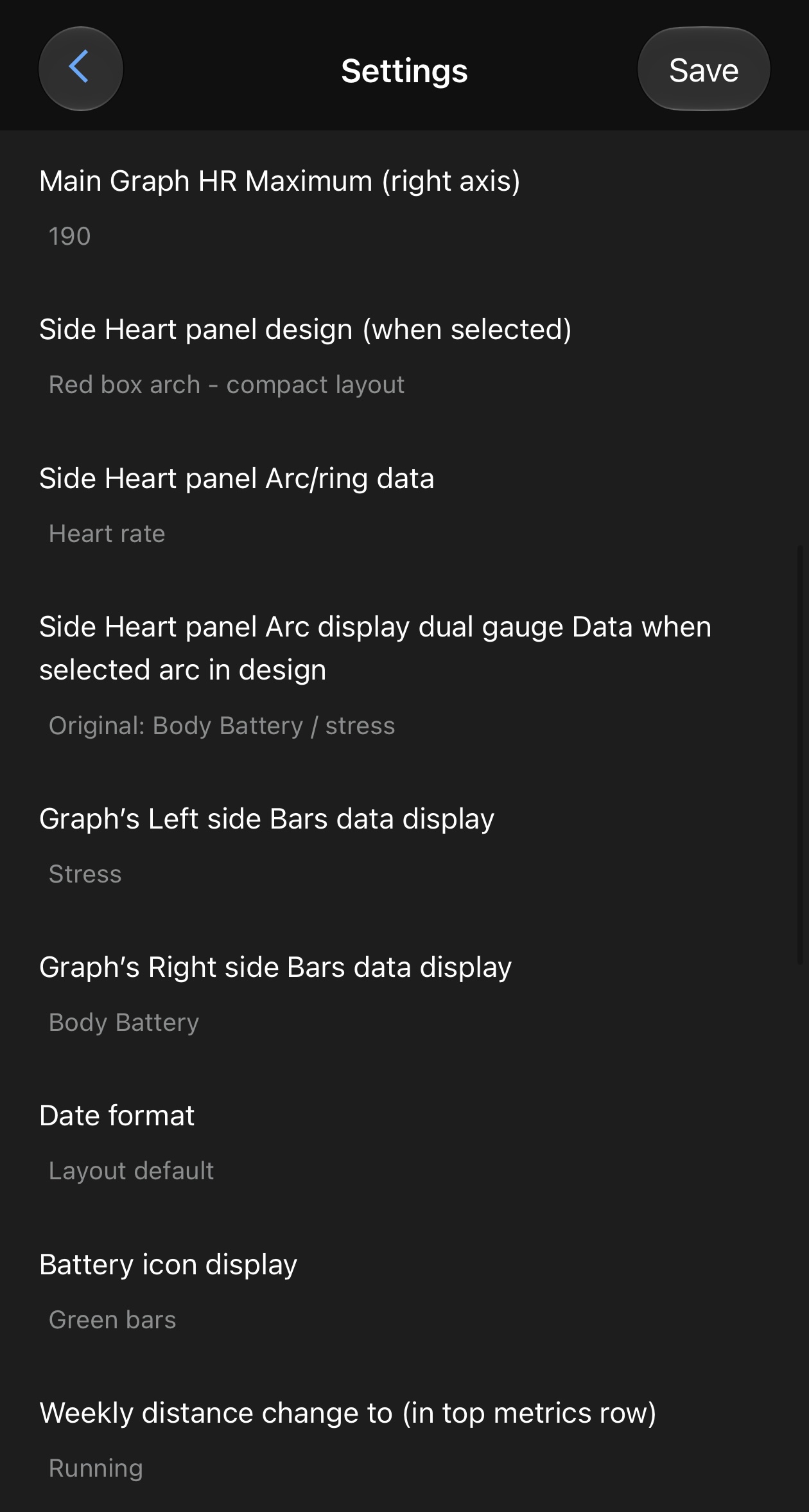
Open Settings → Side Heart panel design and select one of these four designs.

Original dual gauge
DESIGN 01

Original dual gauge

Two gauges display a selected pair of metrics.

Red box arch — compact layout
DESIGN 02

Red box arch — compact layout

A compact segmented arch displays your selected metric.

Eight-segment HR ring
DESIGN 03

Eight-segment HR ring

An eight-segment ring displays your selected metric.

Diamond bead ring + micro stats
DESIGN 04

Diamond bead ring + micro stats

A bead ring with micro stats displays your selected metric.

Choose the metric

For the red box arch, eight-segment ring, or diamond bead ring, choose the data to display: Heart rate, Stress, Steps goal, Watch battery, Body Battery, or Solar intensity.

Two metrics · Original dual gauge only

Choose a pair

  • Body Battery / stress
  • Stress / Body Battery
  • Heart rate / stress
  • Heart rate / steps goal

Reading the Side Heart panel

Side Heart panel: 33 at top left, dashes at top right, 100 in the center, 079 at bottom left and 174 at bottom right.
Example panel · numbered pointers match the descriptions.
  1. 1

    Top left · Recent average stress

    Calculated average stress over the most recent 8 hours. The example shows 33.

  2. 2

    Top right · Current stress

    Your current stress value. This example shows -- in that position.

  3. 3

    Center · Heart rate

    Appears only when you raise your wrist or press a button. The example shows 100.

  4. 4

    Bottom left · Recent lowest heart rate

    In this example, 079 means 79 bpm.

  5. 5

    Bottom right · Recent highest heart rate

    The example peaks at 174 bpm.

Battery · choose your display

Green fill
85%Percentage
12dBattery days

Choose a format under Settings → Battery display. In a two-digit percentage field, a full charge reads 99.

85% and 12d are illustrative examples.

Main graph

Dotted area + stress line

The examples pair heart rate (HR) with stress. Either series can also show Body Battery, barometric pressure, elevation, temperature or Pulse Ox.

History
1, 2 or 4 hours
Axis limits
Adjustable minimum and maximum
Colors
Heart rate zones or white
HR bars + stress line
HR line + stress line
HR lollipops + stress steps
Mirrored HR / stress bars
Layered HR / stress areas
Fine striped HR area + stress
Bluetooth connected

Bluetooth connection

The blue Bluetooth icon indicates that your watch is connected to your phone.

Movement bar stage 1Movement bar stage 2Movement bar stage 3

Movement bar

The bar fills one stage at a time.

Bottom metrics

Sleep, recovery, Body Battery and resting heart rate fields

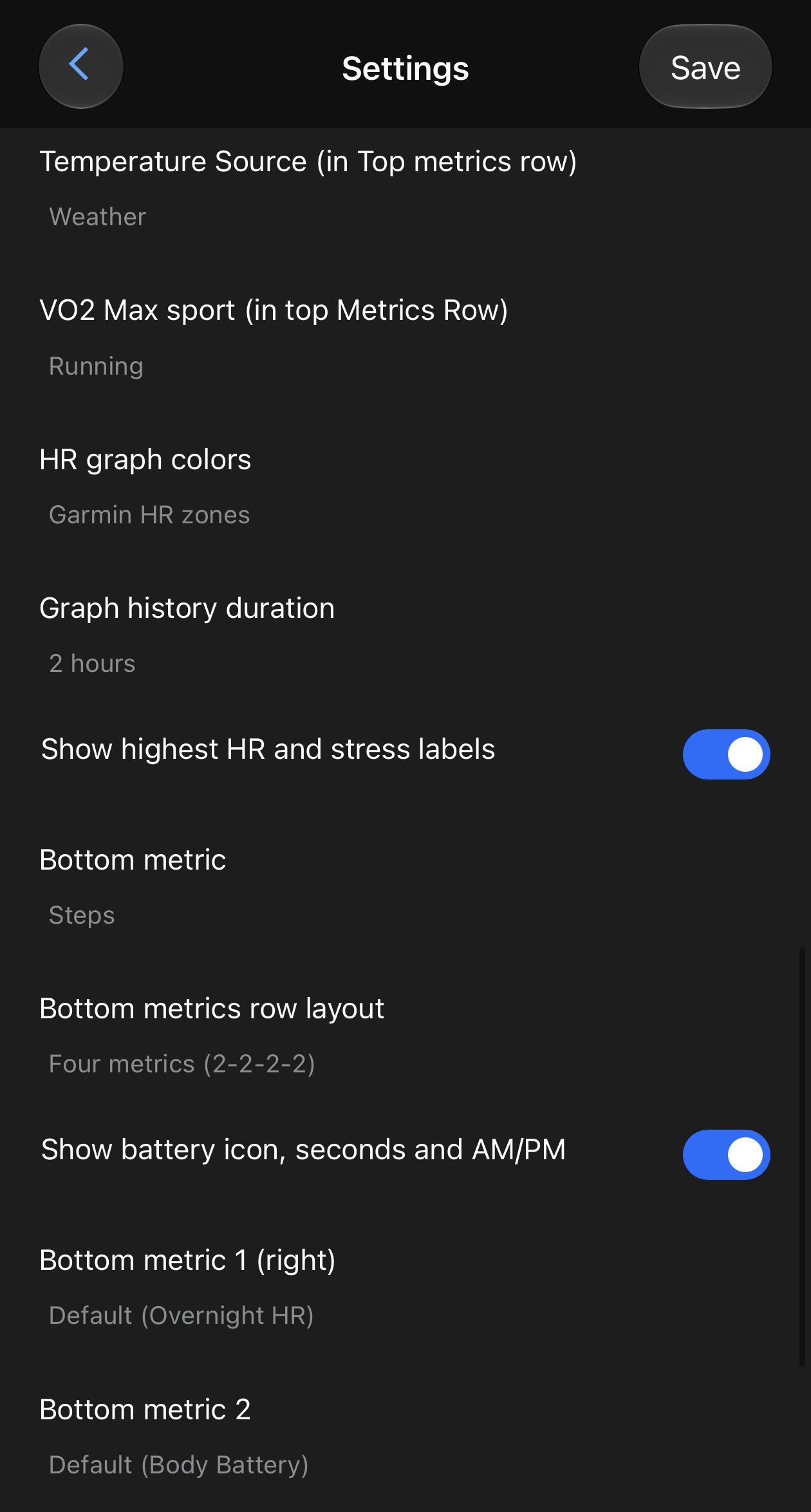
Choose four two-digit fields or three three-digit fields. Choose sleep, recovery, Body Battery, heart rate, distance, floors, intensity minutes or 7-day average HR for individual fields.

Steps

Daily step count

The footsteps icon marks the daily step count beneath the bottom metrics.

03 / Settings map

Quick setting reference

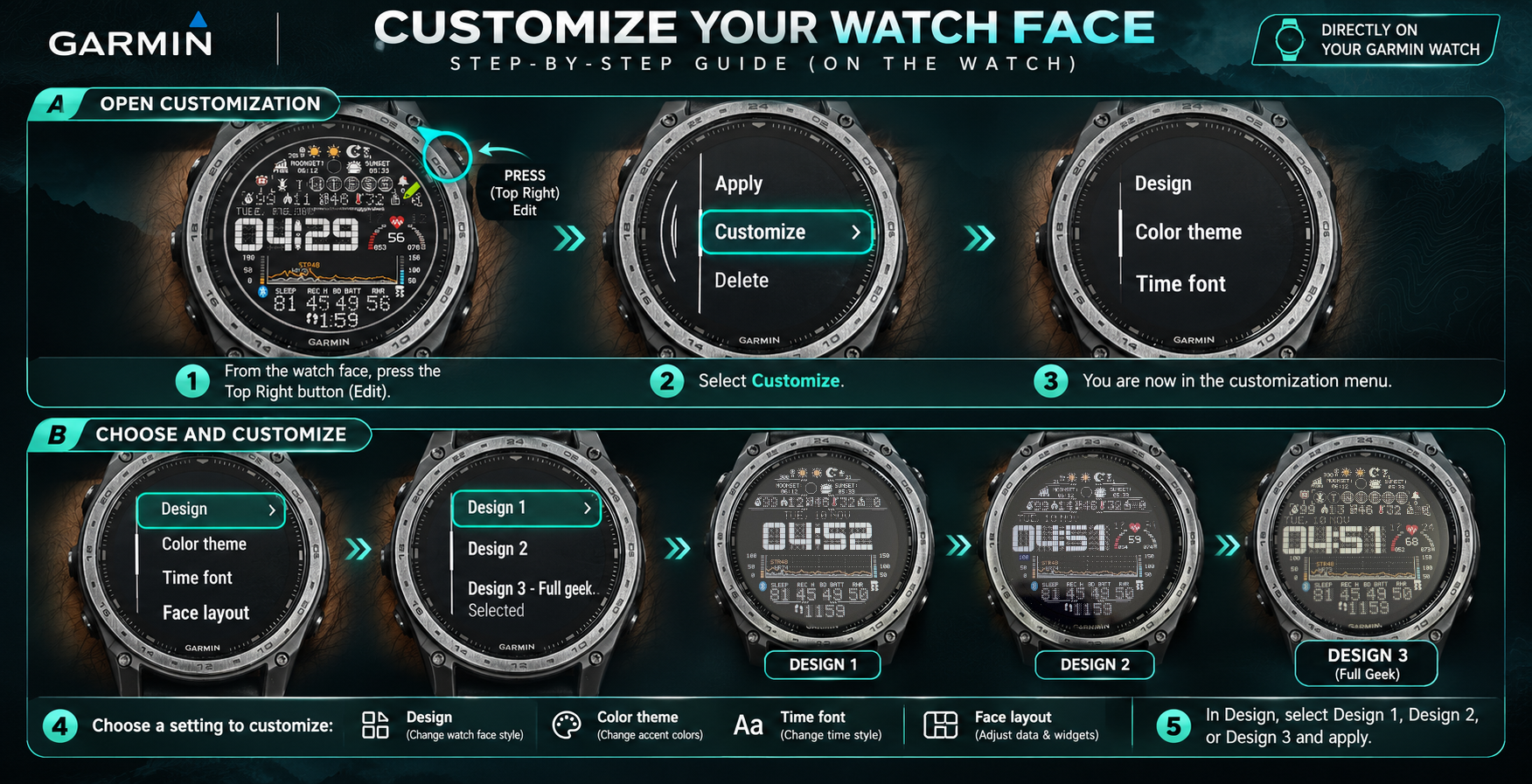
From the watch face shown here, press the top-right button (Edit) and select Customize.

Design

Design 1 is the default. Each preset sets the colors, time font, layout, weather row and sun/moon row. You can then adjust individual settings.

Color theme

Default uses the dark tactical palette. Black on white reverses the black and white elements while keeping the red, amber, green and blue status colors.

Copied